Updated: Dec 15, 2025 By: Marios
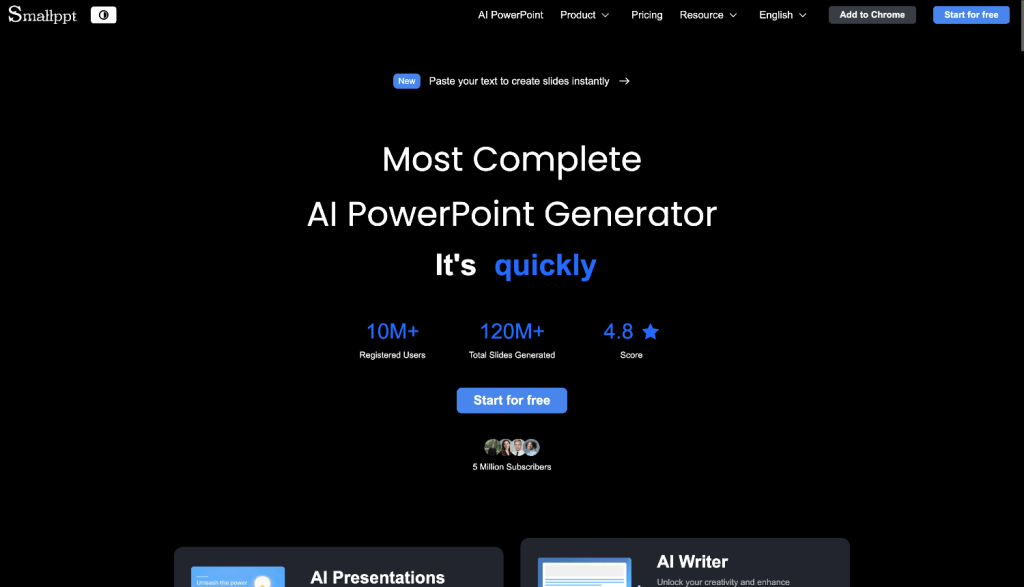
Making a good presentation is usually two separate jobs: writing a clear story and turning that story into slides that look like a real designer touched them. Most “AI presentation makers” focus on the second part (templates + layouts) and leave you to wrestle with the first part (structure, tone, summarizing research, etc.).
Smallppt aims to be more of an end-to-end workflow: generate a deck from a topic, paste text, import files, pull content from a URL, or even turn audio into slides—then edit online, collaborate with a team, and export to PPTX/PDF/images.
This review covers what Smallppt is, how it works, the features that matter, pricing, pros/cons, who it’s best for, and what I’d pick instead if you need something different.
What is Smallppt?
Smallppt is an AI-powered presentation tool designed to create structured, professional slides quickly, without needing design skills. It also bundles a set of related AI utilities—like an AI Writer, AI Summarizer, AI Chat, a Mind Map creator, and PDF tools—so you can brainstorm, summarize, and draft content in the same ecosystem.
One noteworthy point: Smallppt positions itself as a multi-input slide generator. Instead of only “prompt → deck,” you can generate slides by:
- typing a topic/title
- pasting text (notes, articles, outlines)
- importing files (Word, PDF, Excel, images, and more)
- importing a URL
- uploading audio/voice notes
Smallppt also markets itself as widely used, which suggests it’s not a tiny side project—even if you should still evaluate it like any other tool.
Key features

1) Multiple ways to generate slides (not just prompts)
Smallppt supports several paths into a deck: generate from a topic, import a file, import a URL, paste text, or use audio. You can also tune things like slide count, audience, tone, language, and text length.
This matters because “AI slides” are only useful if they fit your real workflow:
- You already have a report → import and summarize into slides
- You already have notes → paste and structure them
- You have a voice memo after a meeting → upload audio and turn it into an outline + deck
2) Templates + one-click replacement
Smallppt emphasizes templates and “one-click replace,” which basically means you can generate your content first, then swap the entire theme quickly.
For most users, this is one of the biggest time savers. You don’t want to manually reformat spacing, typography, and layout across 12–20 slides.
3) Online editing + exporting
After generation, Smallppt moves you into an online editor where you can tweak content and structure, add slides, and polish. Then you can export to PPTX or PDF, export images, or share a link for others to view/collaborate.
4) Collaboration and team controls
Smallppt markets real-time collaboration, the ability to share/edit/comment in sync, and control over access. The team plan typically highlights permission management, switching between team spaces, and sharing slides via invites.
5) Extra AI tools that support the slide workflow
Smallppt includes supporting tools such as:
- AI Writer
- AI Summarizer
- AI Chat assistant
- Mind Map creator
- AI PDF toolbox (common PDF conversions and utilities)
If you’re creating decks from research, these tools can reduce tab-switching: brainstorm → summarize → outline → slides → export.
How Smallppt works (a realistic “first deck” workflow)

Here’s the simplest workflow that matches how most people actually build presentations:
Step 1: Choose your input method
You can start from:
- a topic/title
- pasted notes or an article
- a file upload
- a URL import
- or an audio upload
Step 2: Set output preferences (before AI writes anything)
Smallppt’s generator lets you set expectations up front: slide count, audience, tone, language, and text length. That’s a big deal because a “board update” deck and a “middle school lesson” deck should not sound the same.
Step 3: Generate an outline
Smallppt is built around outline-first generation (then template selection). In practice, this is where you’ll judge quality fastest:
- Does it put ideas in the right order?
- Are the slide titles meaningful?
- Is it summarizing, or just rephrasing?
Step 4: Pick a template (and optionally replace it later)
You choose from templates, and you can often “one-click replace” the style later if you want a different look without rebuilding the deck.
Step 5: Edit in the online editor
This is where your deck becomes “yours.” You’ll typically:
- tighten titles and bullet points
- add or remove slides
- improve the opening and closing
- adjust wording to match your voice
- add your real numbers, screenshots, or visuals
Step 6: Export or collaborate
Export as PPTX/PDF (and often images), or share the deck for feedback and collaboration.
Deep-dive review: where Smallppt is strong (and where you’ll feel limits)
1) AI generation quality (structure + clarity)
Smallppt’s biggest value isn’t “it can make slides.” Many tools can do that. The real value is whether it produces a usable structure quickly.
Because it leans into outline-first generation, Smallppt is designed the right way for real presentations:
- Layout without narrative is just decoration
- Narrative without layout is hard to present
Where you’ll still need to edit (typical for this category):
- Specificity: AI tends to stay generic unless your input is detailed
- Accuracy: When generating from URLs/files, AI can misinterpret context—always sanity-check claims and numbers
- Voice: “Professional” tone can sound safe/flat; you may want to add punchier wording
Practical take: Smallppt is best when you already know what you want to say (or you have source material), and you want the tool to do 70–80% of the structure and formatting fast.
2) Importing existing content (files, text, URL, audio)
This is one of Smallppt’s most compelling differentiators.
File to PowerPoint: The platform supports creating slides from many file types. That’s great for:
- turning reports into meeting decks
- turning class notes into study slides
- repurposing a document into a training presentation
Paste text to slides: If you have messy notes or a rough outline, the paste flow is one of the fastest ways to get a workable first draft.
URL to slides: Useful for quick briefings (competitor pages, product pages, articles), but it’s also where you should be most skeptical and verify what it extracts.
Audio to slides: This can be surprisingly valuable for:
- meeting recaps
- spoken brainstorms
- quick summaries after calls
If you’re deciding whether Smallppt is worth it, ask yourself: How often do I start from existing content instead of a blank page? If the answer is “most of the time,” the import workflows are a real advantage.
3) Templates + “one-click replace” in real life
Template libraries are only useful if:
- The templates match your real use cases (business, education, marketing, etc.)
- Switching templates doesn’t destroy layout
In practice:
- It’s great for quickly trying different “moods” (minimal vs colorful vs corporate)
- It’s less great when your content density varies wildly slide-to-slide (lots of text on one slide, a simple visual on another). AI layouts can still need manual adjustments.
My suggestion: use Smallppt templates to get your baseline deck, then spend your human time on the top 20% of slides that actually matter (your opener, your key slide, your conclusion).
4) Collaboration: good enough for many teams
Smallppt supports collaboration like real-time editing, sharing, and comments. For many small teams, that’s “enough” for:
- school group projects
- small business teams
- founders working with a designer/marketer
- agencies collaborating with clients on drafts
If you’re used to heavy enterprise governance and very granular permission settings, validate those controls carefully before you roll it out widely.
5) Exports and deliverables (PPTX, PDF, images, outline)
A lot of AI slide tools lock you into their editor. Smallppt is more practical here because exporting to common formats is a key part of the promise.
If your workflow ends in PowerPoint (because your company or client demands a .pptx file), this is an important checkbox.
6) The “extra” AI tools are actually useful (if you do research-heavy decks)
The supporting tools aren’t just add-ons. They can reduce busywork:
- summarize long articles or files
- rewrite sections in a consistent tone
- brainstorm structure with chat
- turn ideas into mind maps
- handle common PDF conversions and utilities
This matters because the real pain is rarely “make slides.” It’s “turn messy information into a clean story.” Having summarization + writing + mind mapping in one place can be a productivity boost.
7) Security and privacy (the reality check)
Smallppt markets secure handling of content and encryption. That’s reassuring as a baseline, but if you’re handling sensitive company data, treat any cloud AI workflow carefully:
- avoid uploading confidential information unless policies are clear
- remove personal or proprietary details where possible
- confirm what data is stored and how it’s used
Real-world use cases (where Smallppt shines)
1) Turn a report into a meeting deck
Upload a document, generate a structured outline, choose a clean template, and export a PowerPoint file for your meeting.
2) Convert messy notes into a polished narrative
Paste your notes, generate an outline, then rewrite only the slides that need stronger messaging. This is one of the fastest ways to get from “idea” to “presentable.”
3) Build lesson slides fast (teachers/students)
Smallppt fits education well: topic → outline → template → export. If you’re teaching or studying, it can save hours of formatting.
4) Audio-to-slides for meeting recaps
If your team records quick updates, you can transform voice notes into a structured slide deck, then edit, share, and export.
Pricing (what you get, and which plan makes sense)
Smallppt offers a free tier plus multiple paid plans. The practical takeaway is:
Free plan (best for testing)
Good for evaluating:
- whether the AI creates usable outlines
- whether templates fit your style
- whether exports and editing feel smooth
Paid personal plans
Best if you:
- make decks regularly
- want more generations, more exports, and fewer limits
- want “no mental overhead” usage (generate/edit/export as much as you need)
Lifetime plan
Attractive if you:
- dislike subscriptions
- plan to use it long-term
- are comfortable betting on ongoing product support
Team plan
Best if you:
- collaborate frequently
- need shared workspaces and permission management
- want one plan that supports team workflow
Simple rule of thumb:
- Try free first.
- If you make presentations weekly, go paid.
- If you collaborate daily, consider the team plan.
Pros and cons
Pros
- Multiple input methods (topic, paste text, file import, URL, audio) that fit real workflows
- Template workflow with quick theme switching
- Practical exports (PPTX/PDF and often images)
- All-in-one toolset (summarizer, writer, mind map, PDF tools)
- Collaboration support for teams
Cons
- AI output can feel generic on complex or highly original topics (you’ll likely do a “human voice” pass)
- Dense slides may need layout cleanup after generation
- URL imports require verification because extracted content can be imperfect
- Enterprise-grade permission depth may vary (validate if that’s critical for you)
Smallppt vs popular alternatives (quick guidance)
Instead of comparing every checkbox, think in “best for”:
- Choose Smallppt if you want fast slides + multiple input options + practical exports.
- Choose design-first tools if you want maximum creative control and don’t mind spending more time manually laying out slides.
- Choose narrative/web-first tools if you prefer scrollable story docs more than classic PowerPoint workflows.
Final verdict: who should use Smallppt?
Smallppt is a strong pick if you want speed and practicality: importing content, getting a clean outline, applying templates quickly, collaborating, and exporting in formats that the real world demands.
It’s especially valuable if your presentations come from messy inputs—documents, links, meeting notes, or voice memos—because it’s built to turn those into structured decks quickly.
If you require strict enterprise governance and deeply granular permissions, treat Smallppt as a “pilot first” product: test collaboration controls carefully before deploying across a large org.
FAQs
Can Smallppt export to PowerPoint and PDF?
Yes—exporting to common formats is a core part of the workflow.
Can I export slides as images?
Typically yes on paid tiers, useful for social posts and quick sharing.
Can it create slides from files like PDF or Word?
Yes—file-based generation is one of its main workflows.
Can it create slides from a URL?
Yes, but verify the extracted facts before presenting.
Can it create slides from audio?
Yes—useful for meeting recaps and spoken brainstorms.
Is there a free plan?
Yes—good for testing output quality before upgrading.
Does Smallppt support collaboration?
Yes—collaboration is part of the core positioning, with more advanced team features on team plans.


